

Both iOS 26 and Android 16 finally give you real controls over how your phone charges, plus honest readouts of how worn the battery already is. This guide walks through every setting that matters on iPhone and Pixel, explains what each one actually does to the cell, and tells you when the popular "charge to 80%" advice is the wrong call. Budget about ten minutes.
Which iPhones and Pixels have these settings
You will need:
- An iPhone 15 or newer running iOS 26 for the Charge Limit slider (older iPhones still get Optimized Battery Charging), or an iPhone 15 Pro or newer for Adaptive Power.
- A Pixel 6 or newer on Android 16 for the Battery health page; the capacity percentage only appears on the Pixel 8a and newer.
- Five minutes of honest reflection about your charging routine, because the best setting depends on it.
Other Android brands (Samsung, OnePlus, Nothing) have similar charge-limit switches under different names. The principles in this article apply to all of them; only the menu paths differ.
Why lithium batteries wear out (and what actually helps)
Every lithium-ion cell loses capacity with age and use. Two things speed that up: time spent at very high or very low state of charge, and heat. A phone that sits at 100% on a charger all night, warm under a pillow, is doing the two worst things at once.
That is the whole logic behind the features below. Charge limits keep the cell away from the top of its range. Optimized and adaptive charging keep it there for less time. Heat management stops the chemistry from aging faster than it has to. None of these tricks restore lost capacity; they just slow the decline.
One habit you can drop today: draining the phone to zero to "calibrate" it. Google's battery guidance says plainly that you don't need to teach your phone how much capacity the battery has by running it flat. Deep discharges add wear for no benefit.
Step 1: Check your battery's health and cycle count
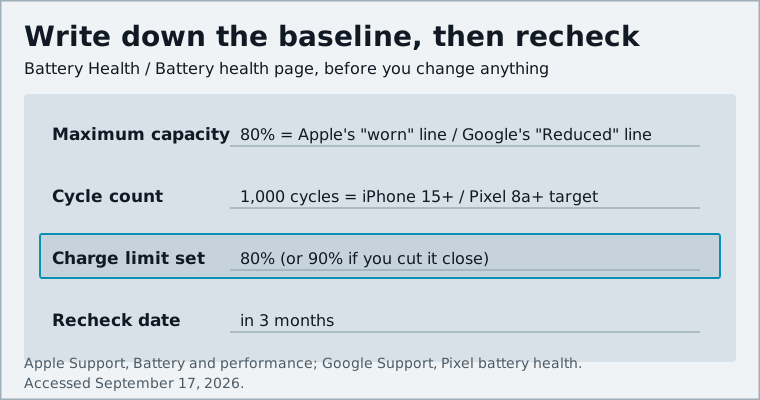
Start with a baseline so you can tell later whether your changes are working.
iPhone: Open Settings > Battery > Battery Health. iOS 26 shows maximum capacity and cycle count in the same place. Apple considers a battery worn once it drops to about 80% of its original capacity.
Pixel: Open Settings > Battery > Battery health. Android 16 added this page to Pixel 6 and newer, but the actual capacity estimate is limited to the Pixel 8a and later. Google labels the reading "Normal" or, below 80%, "Reduced", at which point it recommends a replacement.
Google also publishes expected lifespans: roughly 800 cycles to the 80% mark for the Pixel 3 through Pixel 8 Pro, and about 1,000 cycles for the Pixel 8a and later. Write your current figures down or take a screenshot. Check again in three months.
Step 2 (iPhone): Set a Charge Limit between 80% and 100%
- Open Settings > Battery > Charging.
- Drag the Charge Limit slider. Apple lets you pick any value from 80% to 100% in 5% steps on the iPhone 15 and later.
- Leave the screen. The phone will charge to within a few percentage points of the limit and then stop.
Which value should you pick? If your phone routinely reaches the evening with 30% or more to spare, 80% is a free win. If you sometimes cut it close, try 90%: you still avoid the most stressful top of the range and keep a useful buffer. You can change the limit any time, and it takes effect on the next charge.
On an iPhone 14 or earlier there is no slider. You get Optimized Battery Charging only, under Settings > Battery > Battery Health & Charging.
Step 3 (iPhone): Turn on Optimized Battery Charging and Adaptive Power
These two features solve different problems, so it is worth having both.
Optimized Battery Charging
This is only available when your Charge Limit is set to 100%, and it is on by default. When you plug in for a long stretch, typically overnight, the iPhone delays charging past 80% in certain situations and finishes shortly before you usually unplug. That means less time sitting at full charge.
It does need training. Apple says the on-device model requires at least 14 days to learn your habits and at least nine charges of five hours or more in one place before it starts engaging. If you travel a lot or charge at random times, it may rarely kick in, which is one reason a fixed Charge Limit is the more predictable option.
Adaptive Power
Adaptive Power is new in iOS 26 and is about daily runtime, not long-term wear, though the two are linked: a battery that is not being hammered runs cooler. To enable it:
- Open Settings > Battery > Power Mode.
- Toggle Adaptive Power on.
When the phone notices you are burning through battery faster than usual, it dims the display slightly and lets some tasks take a little longer, and it can switch on Low Power Mode automatically at 20%. It is on by default on the iPhone 17 family and available but off by default on iPhone 16 models and the iPhone 15 Pro and Pro Max. Older iPhones do not get it, because it depends on Apple Intelligence.
Step 4 (Pixel/Android 16): Open Battery health and enable Limit to 80%
- Open Settings > Battery > Battery health.
- Scroll to Charging optimization at the bottom of the page.
- Turn the feature on and choose Limit to 80%.
The alternative option, Adaptive Charging, mirrors Apple's approach: it learns your charging habits over about 14 days and holds the battery below full until roughly an hour before you normally unplug. It only helps on long, predictable charges. If your routine is messy, Limit to 80% is the better choice.
One detail worth knowing: with the 80% cap enabled, the Pixel will occasionally charge all the way to 100% anyway. Android 16 explains that it does this once every one to two weeks to keep its battery-level reporting accurate, and Google's support page describes it as a periodic full charge for calibration. That is expected behavior, not a bug.
Google also runs a quieter protection in the background. On the Pixel 6a and later, battery health assistance gradually lowers the maximum charging voltage from around 200 cycles onward to slow aging, and the phone will automatically hold charge around 70 to 80% if it has been plugged in for several hours in high heat or left on a charger for days.
Step 5: Manage heat while charging and gaming
Heat is the other half of battery aging, and it is largely under your control.
- Charge on a hard, open surface. A phone under a pillow or on a sofa cushion cannot shed heat. A desk or nightstand can.
- Take the case off for fast charging. Thick cases hold in warmth; if the phone feels hot to the touch while charging, remove the case.
- Prefer a cable for overnight charging. Apple lists wireless charging among the activities that raise iPhone temperature, and Google recommends compatible USB-C PD or PPS chargers in a cool room of around 25 degrees Celsius.
- Do not game or navigate while plugged in if you can help it. Charging plus a hot processor is the worst-case combination.
- Keep it out of the sun. Apple designs the iPhone for ambient temperatures between 0 and 35 degrees Celsius. Above that, charging slows or stops on its own.
If your phone is already running hot regularly, our guide to phone overheating fixes works through the causes one by one.
Step 6: Fix the apps that drain in the background
Anything that keeps the processor busy while the phone is in your pocket costs charge cycles and creates heat. Both platforms show you the culprits.
iPhone: Settings > Battery now shows a weekly view with an average-use comparison against your typical days, plus a per-app list. For apps near the top that you do not need to update constantly, go to Settings > General > Background App Refresh and switch them off. Also review location access under Settings > Privacy & Security > Location Services and change "Always" to "While Using" wherever possible.
Pixel: Settings > Battery > Battery usage lists apps by consumption. For an app that misbehaves, tap it and set background usage to Restricted. As with iOS, review location permissions and turn off "Allow all the time" for apps that do not need it.
Do not bother force-closing apps by swiping them away. It rarely saves power and can cost more when the app cold-starts next time.
When an 80% limit is a bad idea
A charge limit is a trade: you give up 20% of daily runtime to slow wear you will notice in two or three years. That trade does not suit everyone.
- You run out of charge before evening. Draining to zero regularly is worse for the cell than charging to 100%. Raise the limit or turn it off.
- You are traveling or off-grid. Turn the limit off the night before a long day away from outlets. It is one toggle.
- You replace your phone every year or two. You will probably never see the benefit; the next owner might.
- You depend on the phone for safety-critical use. Runtime beats longevity.
The middle ground is a 90% or 95% limit on iPhone, or Adaptive Charging on Pixel. Both cut time at full charge without a large runtime penalty.
When to replace the battery instead
Settings cannot fix a cell that is already worn. If iOS reports maximum capacity around 80% or lower, or your Pixel shows "Reduced," a new battery is the only real fix. Symptoms include shutdowns at 20 or 30% remaining, a phone that runs hotter than it used to, and slower performance as the system throttles to protect the aging cell.
A replacement usually costs a fraction of a new phone, and it is about to get easier: from February 2027, phones sold in the EU must either have batteries the owner can swap or meet a tougher durability standard. We break that down in our piece on the EU replaceable battery rules. If you are curious why some new phones can pack larger batteries into the same body, see our explainer on silicon-carbon batteries.
Troubleshooting
- Optimized Battery Charging never seems to activate. It needs 14 days and at least nine long charges in one location. Inconsistent routines defeat it; use a Charge Limit instead.
- Your Pixel charged to 100% despite the 80% limit. That is the scheduled calibration charge, roughly every one to two weeks.
- The Charge Limit slider is missing. It requires an iPhone 15 or later. Earlier models only offer Optimized Battery Charging.
- Adaptive Power is not in your settings. It is limited to the iPhone 15 Pro and later.
- Your Pixel says "Battery protection" and stopped at 80% on its own. The phone detected prolonged charging in heat or a multi-day charge; it resumes normal behavior once you unplug and cool it down.
Set a charge limit you can live with, let the phone learn your routine, and keep it cool while it charges. Those three moves address most of what ages a lithium battery. Check the health page every few months, and once capacity falls near 80%, stop tweaking settings and replace the cell.
Sources and further reading
- About Charge Limit and Optimized Battery Charging on iPhone - Apple Supportsupport.apple.com
- iOS 26: Enable or Disable Adaptive Power Mode - MacRumorsmacrumors.com
- Five Ways iOS 26 Improves Your iPhone's Battery - MacRumorsmacrumors.com
- Adaptive Power is enabled by default on iPhone 17 - Tom's Guidetomsguide.com
- Android 16 adds Battery health capacity on Pixel - 9to5Google9to5google.com
- Android 16: Limit to 80% will fully charge Pixel every 1-2 weeks - 9to5Google9to5google.com
- Get the most life from your Pixel phone battery - Google Supportsupport.google.com
- Understand your Pixel battery - Google Supportsupport.google.com
- If your iPhone or iPad gets too hot or too cold - Apple Supportsupport.apple.com