

Your phone ships with sensible security defaults, but "sensible for everyone" is not the same as "right for you." iOS 26 and Android 16 both added protections that are off or set to their most permissive option out of the box, and a handful of older settings still default to convenience over safety. This checklist walks through ten changes, roughly fifteen minutes of work, that close the gaps that actually get people burned: rogue charging cables, browser fingerprinting, snatched phones and SIM-based account takeovers. Do the ones for your platform, then the shared ones at the end.
What you need, and the update setting to turn on first
You will need:
- An iPhone running iOS 26 or later, or an Android phone running Android 16 or later. Older versions have many of these settings, but not the new ones covered here. Check under Settings > General > Software Update (iPhone) or Settings > System > Software updates (Android).
- A screen lock already set (a passcode plus Face ID, Touch ID or fingerprint). Several of the protections below refuse to turn on without one.
- About 15 minutes. None of the steps require a reboot except one workaround.
While you are in the update screen, turn on automatic updates. On iPhone, Settings > General > Software Update > Automatic Updates, and enable both downloads and installs, including Security Responses. On Android, Google Play system updates and app updates are automatic on most phones, but check Settings > Security & privacy for any pending items. Most phone compromises exploit bugs that were patched weeks earlier; automatic updates are the single highest-value setting on this list, and it is the one people most often leave off.
iPhone: set Wired Accessories to "Ask" to block juice-jacking
iOS 26 brought a Mac feature to the iPhone: control over whether a device plugged into the charging port gets a data connection or only power. The concern is "juice jacking," a compromised public charger or cable that tries to talk to your phone rather than just charge it. It is rare in practice, but the fix is free.
- Open Settings > Privacy & Security > Security > Wired Accessories.
- You will see four options, which Apple documents in its accessory connection support note: Always Ask, Ask for New Accessories, Automatically Allow When Unlocked (the default) and Always Allow.
- Choose Ask for New Accessories. Your own cables and car adapters are approved once and then remembered; anything unfamiliar triggers a prompt.
Macworld's walkthrough recommends one of the two Ask options and notes that tapping Don't Allow still lets the phone charge, so there is no downside at an airport kiosk.
If the setting is grayed out and says it is managed by your organization on a phone you own, you have hit a known iOS 26.0.x bug. TidBITS reported that turning Lockdown Mode on, restarting, then turning it off and restarting again restores the control; resetting all settings also works.
iPhone: Advanced Tracking and Fingerprinting Protection for all browsing
Safari has long blocked cross-site cookies, but trackers moved on to fingerprinting: identifying you by screen size, fonts, hardware quirks and dozens of other signals. iOS 26 expanded Safari's fingerprinting defenses, and a stricter setting is still one tap away.
- Go to Settings > Apps > Safari > Advanced.
- Tap Advanced Tracking and Fingerprinting Protection and set it to All Browsing (the default applies it only to Private Browsing).
- Back in the main Safari settings, confirm Prevent Cross-Site Tracking, Fraudulent Website Warning and Hide IP Address (from Trackers) are all on.
A small number of sites, mostly ones that rely on tracking links for logins, may misbehave; if one does, you can switch the setting back for a session rather than permanently.
iPhone: trim precise location and app tracking requests
Two settings control most of what apps learn about you off-screen.
- Settings > Privacy & Security > Tracking: turn off Allow Apps to Request to Track. Apps will no longer even be able to ask for cross-app tracking permission.
- Settings > Privacy & Security > Location Services: work down the list. For anything that is not a maps, weather or ride app, set it to While Using or Never, and turn off Precise Location for apps that only need your city.
While you are in Privacy & Security, open Analytics & Improvements and turn off Share iPhone Analytics if you would rather not send diagnostic data to Apple. This is a privacy preference more than a security one, but it takes five seconds.
iPhone: lock sensitive apps behind Face ID and review Stolen Device Protection
Since iOS 18 you can require Face ID or Touch ID to open individual apps. Touch and hold an app icon, then tap Require Face ID (or Touch ID). Do it for your banking app, your password manager, Photos and any messaging app you would not want a phone snatcher to read.
Pair that with Stolen Device Protection, under Settings > Face ID & Passcode. When it is on and the phone is away from your usual locations, sensitive actions such as viewing saved passwords or changing your Apple Account password need biometrics, with a one-hour delay for the most dangerous changes. Apple's Stolen Device Protection support note lists a useful side effect: with it on, locked apps require Face ID or Touch ID away from familiar places, with no passcode fallback. That defeats the classic attack of watching someone type their passcode and then stealing the phone.
Android: what Advanced Protection mode turns on with one toggle
Android 16's headline security feature is a single switch that flips on a bundle of protections at once. Google describes it as its strongest mobile security, and it was built for people at elevated risk of targeted attacks.
- Open Settings > Google > Personal & device safety > Advanced Protection.
- Turn on Device protection. Some phones also surface it under Settings > Security & privacy.
According to Android Authority's breakdown and Google's developer documentation, the toggle enables, in one go:
Scroll sideways to see the full table →
| Area | What Advanced Protection does |
|---|---|
| Theft | Theft Detection Lock, Offline Device Lock, automatic reboot after 72 hours of inactivity |
| Ports | USB limited to charging only while the phone is locked |
| Apps | Sideloading blocked, Play Protect scanning enforced, Memory Tagging Extension on supported Armv9 chips |
| Network | 2G connections blocked, no auto-reconnect to insecure (WEP) Wi-Fi |
| Web | Chrome forces HTTPS and disables its JavaScript optimizer |
| Calls and texts | Scam and spam detection in Phone and Messages; calls from unknown numbers can be blocked |
| Forensics | Intrusion Logging: security logs backed up end-to-end encrypted so an expert can analyze them if you suspect compromise |
Intrusion Logging was announced with the mode in May 2025 and is rolling out to Pixel phones on Android 16 with Advanced Protection enabled; Google's help page has the current details. Some pieces, notably 2G blocking and USB protection, depend on the chipset, so not every Android 16 phone gets the full list.
Android: should you enable Advanced Protection? Trade-offs explained
Google positions the mode for public figures, journalists and activists, but nothing stops anyone from turning it on. The question is whether the restrictions get in your way.
You should probably enable it if:
- You install apps only from Google Play and do not use F-Droid or downloaded APKs.
- You do not travel to regions where 2G is the only network available.
- You are not a developer who needs USB debugging while the phone is locked.
You should probably skip it, or expect to toggle it off occasionally, if you sideload apps, use developer tools or rely on a legacy Wi-Fi network. Android Authority notes that Advanced Protection is all-or-nothing: to install an app from outside Play you have to disable the whole mode, then re-enable it afterward.
If you skip the bundle, turn on its most valuable pieces individually. Theft protection is covered below. Under Settings > Network & internet > SIMs (or Mobile network) look for Allow 2G and turn it off; 2G downgrade attacks by fake cell towers are a real technique, and almost no one in North America or Europe needs 2G anymore.
Both platforms: SIM PIN, screen-lock timeout and theft protection
SIM PIN. If a thief moves your SIM to another phone, they receive your text-message login codes. A SIM PIN stops that. On iPhone: Settings > Cellular > SIM PIN. On Android: Settings > Security & privacy > More security & privacy > SIM lock (names vary by manufacturer). Your carrier's default PIN is usually printed in your plan documents or is a well-known default such as 0000 or 1234; change it. Three wrong guesses locks the SIM and requires a PUK code from your carrier, so write the new PIN down somewhere safe. This matters less if you have moved important accounts off SMS, which we cover in our guide to 2FA methods.
Screen-lock timeout. A phone that stays unlocked for five minutes on a cafe table is an open phone. On iPhone: Settings > Display & Brightness > Auto-Lock, 30 seconds or 1 minute. On Android: Settings > Display > Screen timeout, and under Security & privacy > Device unlock check the "Lock after screen timeout" delay, which should be immediate.
Theft protection (Android). Google's theft protection features live under Settings > Google > All services > Theft protection. Turn on Theft Detection Lock, which uses motion sensors to lock the screen if the phone is snatched and carried away quickly; Offline Device Lock, which locks the screen when a thief disables connectivity; and Remote Lock, which lets you lock the phone from android.com/lock with just your phone number. Android 16 also adds a stricter Failed Authentication Lock after repeated wrong attempts. These require Android 10 or later and an active screen lock.
Theft protection (iPhone). Stolen Device Protection, covered above, is the equivalent. Also confirm Find My iPhone is on with Send Last Location enabled, so a stolen phone can be tracked and remotely erased.
The one setting we would not touch: Lockdown Mode for most people
Both platforms also offer a stricter tier: Apple's Lockdown Mode (Settings > Privacy & Security > Lockdown Mode) and, on Android, the full Advanced Protection bundle discussed above. Apple is candid that Lockdown Mode is an extreme, optional protection for the very few people who might be personally targeted by mercenary spyware, and that most people will never face that kind of attack.
The cost is real: message attachments are blocked, many web technologies are disabled, incoming FaceTime from unknown callers is refused, wired connections require the phone to be unlocked, and some apps and websites simply stop working. If you are a journalist, an activist, a lawyer handling sensitive cases or someone who has been warned by Apple about targeted attacks, turn it on. If you are not, the nine settings above give you nearly all of the practical benefit with none of the breakage.
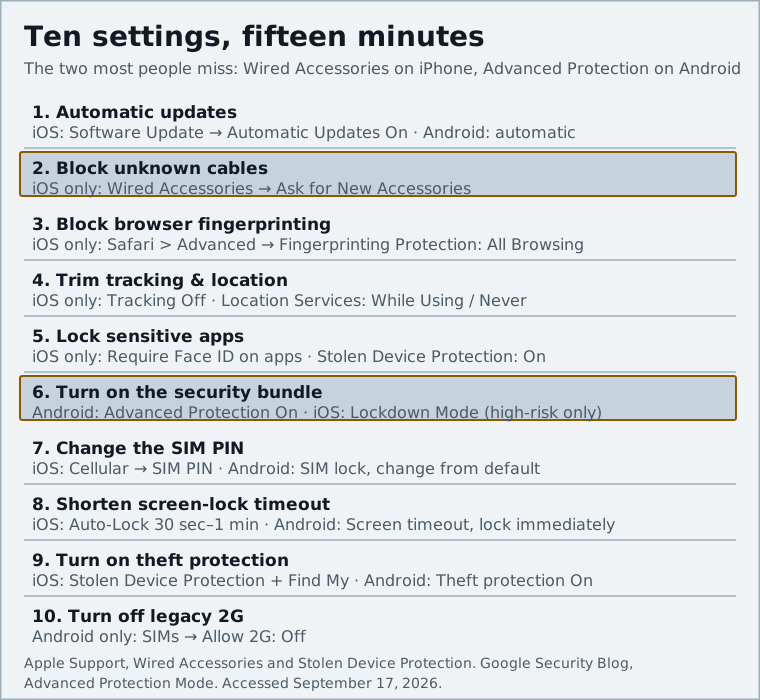
Fifteen minutes gets you a phone that ignores unknown cables, resists browser fingerprinting, locks itself when snatched and keeps your SIM from becoming someone else's login token. On iPhone, the Wired Accessories and Stolen Device Protection settings are the two most people are missing; on Android, decide whether the Advanced Protection bundle fits your habits and, if not, turn on theft protection and disable 2G by hand. Leave Lockdown Mode to the people it was built for.
What to do next
A phone is only one half of your account security. With the device hardened, spend the next fifteen minutes on the accounts that live on it: enable a phishing-resistant sign-in method on your Google, Apple and Microsoft accounts, ideally a passkey, and move the rest onto an authenticator app rather than SMS. Our passkey setup guide walks through each platform. If you suspect an account has already been compromised, start with what to do when your Google account is hacked instead.
Then set a reminder to revisit this list after each major OS release. Apple and Google both add new protections every year, and they are almost always off by default.
Sources and further reading
- iOS 26 has a new iPhone security setting that you need to turn on immediately (Macworld)macworld.com
- Allow USB and other accessories to connect to your iPhone or iPad (Apple Support)support.apple.com
- Juice Jacking Protection Setting Broken in iOS 26 (TidBITS)tidbits.com
- iOS 26 Adds Advanced Safari Fingerprinting Protection (Stape)stape.io
- About Stolen Device Protection for iPhone (Apple Support)support.apple.com
- About Lockdown Mode (Apple Support)support.apple.com
- Android 16's Advanced Protection security mode (Android Authority)androidauthority.com
- Advanced Protection: Google's Strongest Security for Mobile Devices (Google Security Blog)security.googleblog.com
- Advanced Protection Mode (Android Developers)developer.android.com
- Protect your personal data against theft (Android Help)support.google.com