

A laptop that runs fine for two minutes and then turns into a stuttering, roaring mess is not broken. It is thermal throttling: the processor is deliberately slowing itself down to stay under its temperature limit. This guide shows you how to confirm that is what is happening, find the cause, and fix it, starting with the free fixes and working up to opening the machine. Most people will be done before the screwdriver comes out.
Seven fixes in order, before the screwdriver comes out
If you only have five minutes, try these in order:
- Get it off the bed, sofa or your lap. Soft surfaces block the intake vents underneath. Use a hard desk or a stand that lifts the rear edge.
- Blow out the vents. Dust in the fan and heatsink fins is the most common cause of a laptop that used to be fine.
- Kill background load. Open Task Manager and sort by CPU; a sync client or updater can keep the chip warm before you launch a game.
- Switch the vendor's performance mode. "Turbo" profiles trade heat for a few percent of performance; "Balanced" often gives smoother sustained frame rates.
- Cap the boost. Lowering the maximum processor state or power limit by 10-20% can eliminate throttling with almost no visible slowdown.
- Undervolt, if your CPU allows it.
- Repaste, if the machine is a few years old and everything above has failed.
The rest of this article explains each of these and how to tell which one you need.
What thermal throttling actually is (and why it is protecting your laptop)
Every processor has a maximum junction temperature, or Tj max. Intel says it varies by product and usually falls between 100°C and 110°C; most laptop chips use 100°C. At that figure the chip's own thermal control reduces frequency and power until it cools. As Puget Systems puts it, CPUs automatically begin limiting power once they reach their thermal limit, and lower power means lower clocks.
This is a safety feature, not a fault. A modern laptop chip touching 100°C for a second under an all-core load is normal. Sitting at the limit for minutes at a time is not, because then you are paying for a processor you never get to use. The goal, per Puget, is for throttling to be minimal in duration and frequency.
The classic laptop signature looks like this: clocks boost to their maximum in the first 30 seconds of a game, then collapse to 2.0-2.5GHz after two or three minutes while temperatures sit at or above 90°C. Frame rates follow the clocks down and fans hit full speed. The GPU throttles the same way with its own, usually lower, limit, and because thin gaming laptops share heat pipes between the two chips, one can push the other over the edge.
Step 1: Measure with HWiNFO or Core Temp, and know what is normal
Guessing is pointless; you need numbers. Two free tools cover it:
- HWiNFO64 in sensors-only mode. It lists CPU and GPU temperatures, fan RPM, clock speeds and, crucially, a per-core "Thermal Throttling" flag that turns Yes when the chip hits its limit.
- Core Temp if you want something lighter that just shows CPU temperatures and Tj max.
Puget's guide pairs a monitor like this with a stress test such as Prime95, but for a laptop the better test is the game or workload that actually gives you trouble. Run it for ten minutes with HWiNFO logging, then check three things: peak temperature, clock speed after ten minutes versus after thirty seconds, and whether the throttling flag ever flipped.
Under a sustained load, roughly:
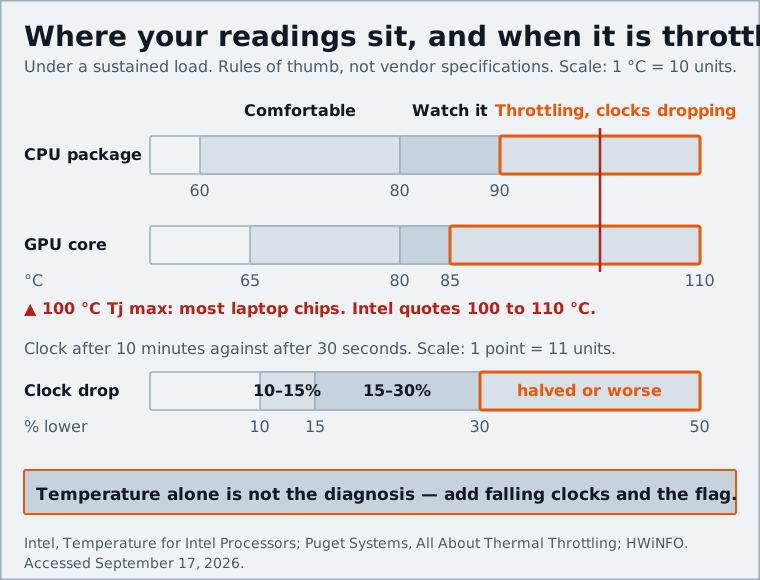
These bands are rules of thumb rather than vendor specifications; recent Intel and AMD chips are rated to run right up to 100°C, so a brief spike is not the problem. Temperature alone is not the diagnosis; temperature plus falling clocks plus the throttling flag is.
One subtlety: HWiNFO also shows a "Power Limit Throttling" flag. If that lights up while temperatures are fine, the laptop is hitting a wattage cap set by the manufacturer, and no amount of cleaning will change it; the fix is the power profile in Step 4.
Step 2: Rule out the easy stuff
Before anything invasive, eliminate the causes that cost nothing.
- Surfaces and vents. Nearly all laptops pull air in through the bottom, so bedding, cushions and thick desk mats starve the fans. A cheap stand that tilts the rear up helps more than any software setting. Shine a flashlight at the exhaust grilles; if you see gray felt, go straight to Step 3.
- Power plan. In Windows, open Power Options, Change advanced power settings, then Processor power management. Confirm Maximum processor state is 100% if performance is unexpectedly low, but the same setting works in the other direction: dropping it to 99% disables turbo boost on many Intel laptops, cutting temperatures sharply at the cost of peak speed. Microsoft's power tuning documentation explains the Processor Performance Boost Mode setting that this trick relies on.
- Background apps. Cloud sync, antivirus scans, video tabs and launcher overlays all add load. Close them before you benchmark.
- Vendor control panels. Armoury Crate, Legion Space, Omen Gaming Hub and their equivalents each have a performance mode. Try balanced and see whether sustained frame rates actually get worse. Often they do not.
If the laptop is new and throttles out of the box on a hard surface with nothing else running, skip to the section on design limits.
Step 3: Clean the fans and heatsink
Dust is the most common cause of a laptop that developed the problem over time, and a proper clean can bring load temperatures down by several degrees, sometimes 10°C or more on a badly clogged machine. The heatsink fins are only a millimeter or so apart, and a felt-like mat builds up on the inside face where compressed air from outside cannot reach. Blowing air into the vents helps a little; the proper clean means removing the bottom panel.
- Shut down, unplug the charger, and remove or disconnect the battery as the first step once the panel is off.
- Remove the bottom screws, keeping track of any different lengths, and pry the panel off gently with a plastic tool.
- Unscrew the fan (usually two or three screws) and lift it out to expose the inside face of the fins.
- Brush or blow the dust mat off the fins and out of the fan housing. A soft paintbrush and short bursts of compressed air work well; hold the fan still so it does not spin up.
- Reassemble, boot, and rerun your ten-minute test. Repeat yearly, more often with pets or smoke.
Step 4: Undervolt or cap boost clocks
If the laptop is clean and still throttles, the cooling system cannot dissipate the power the chip wants to draw. Software can reduce that power, and most of the reduction is free: modern CPUs spend a lot of energy on the last few hundred megahertz.
Undervolting lowers the voltage supplied at each frequency, cutting heat without cutting clocks. Ultrabook Review's ThrottleStop guide suggests starting around -80mV on the CPU core and cache and testing for stability. The catch is that after the Plundervolt vulnerability Intel and laptop makers disabled undervolting through firmware updates on many 10th-generation and later chips, so the voltage sliders in ThrottleStop may simply be grayed out on your machine. On AMD Ryzen laptops, look for Curve Optimizer and apply small negative values per core, starting around -10.
Power limits and boost caps work on every laptop, locked or not:
- In ThrottleStop (Intel) or the vendor app, reduce the long-term (PL1) and short-term (PL2) power limits. A typical starting point is trimming a 60W short-term limit to 45W on a 15W-class chip; more generally, cut limits by 10-20% and watch whether sustained performance improves as temperatures drop. It often does, because a chip that holds 3.5GHz beats one alternating between 4.8GHz and 2.2GHz.
- Reduce the turbo ratio limits by a couple of multiplier steps (one-core boost from 50x to 45x, say).
- Or use the crude Windows method above: Maximum processor state to 99%.
GPU undervolting in MSI Afterburner's curve editor works the same way on Nvidia mobile GPUs and usually gives lower temperatures at identical frame rates, which also frees headroom for the CPU on shared heat pipes.
Test each change with the same ten-minute run. If the throttling flag no longer appears and clocks stay flat, stop there.
Step 5: Repaste, and when it is worth opening the laptop
Thermal paste dries out. On a laptop that has run hot for three or four years it can be a chalky layer that barely conducts heat, and a fresh application can bring 10°C or more of improvement on a machine that has never been repasted. It is the biggest single gain available, and the most involved.
Repasting is worth it when the laptop is out of warranty (or the maker allows user servicing), cleaning and power limits have not fixed it, and temperatures are high even at moderate load, which points to poor contact rather than poor airflow. In outline:
- With the panel and fans off, unscrew the heatsink in the reverse of the numbered order stamped on it, a turn at a time.
- Lift the heatsink straight up and clean the old paste off the die and the heatsink with isopropyl alcohol.
- Apply a small dot of fresh paste to the bare die. Leave the thermal pads on the memory and voltage regulators alone unless damaged; if you replace them, match the thickness.
- Reseat the heatsink and tighten in the numbered order, a turn at a time, so pressure stays even.
- Reassemble and test.
Use a high-end paste or a phase-change pad; liquid metal gives the best numbers but is conductive and not for a first attempt.
When it is not fixable: design limits and warranty options
Some laptops throttle by design. A thin chassis with a 45W chip and one small fan will hit its limit under any sustained load, clean or not. If your test shows the laptop pinned at a power limit rather than a temperature limit, the manufacturer decided how much heat it would allow, and your options are the vendor's performance mode, a cooling pad, and acceptance.
If the laptop is under warranty and throttles far worse than reviews of the same model suggest, contact support before opening it; a badly mounted heatsink is a known factory fault. If you are shopping for a replacement, sustained performance is exactly what to read reviews for. Our thin-and-light laptop guide weighs it heavily, and the Windows on Arm question is partly thermal too: Arm chips run cool enough that many throttle far less in the same chassis.
Those cases are the exception. Thermal throttling is your laptop protecting itself, and it is nearly always fixable. Measure first with HWiNFO so you know whether you are fighting temperature or a power cap, then work up from the free fixes: a hard surface, a clean heatsink and a modest power limit solve most cases. Undervolting and repasting are for when those fail, and both are within reach of a patient owner with a screwdriver.
Sources and further reading
- Puget Systems — All About Thermal Throttlingpugetsystems.com
- Intel Support — Information about Temperature for Intel Processorsintel.com
- HWiNFO — Hardware analysis, monitoring and reportinghwinfo.com
- Microsoft Learn — Power and performance tuning for Windows (Processor Performance Boost Mode)learn.microsoft.com
- Ultrabook Review — The ThrottleStop Guideultrabookreview.com
- Ultrabook Review — Intel & OEMs are disabling undervolting. Here's how to re-enable itultrabookreview.com