

You can run a capable AI chatbot entirely on your own laptop, with no account, no subscription and no data leaving the machine. This guide walks you through the two tools that make that easy, Ollama and LM Studio, explains how to pick a model that fits your memory, and shows how to connect other apps to your local model through its built-in API. By the end you will have a private assistant that works on a plane, in a cabin, or anywhere your cloud provider's terms make you nervous. Model recommendations are as of August 2025.
Why run an AI model locally at all
Cloud chatbots are better at almost everything: the models are bigger, the answers are sharper, and you never think about memory. Local models win on four narrower things.
- Privacy. Contracts, medical notes, source code under NDA and personal journals never leave your disk.
- Cost. After the download, every question is free. Heavy users who hit the caps on the $20 subscription plans can offload routine work.
- Offline use. No network, no problem.
- Control. You choose the model, its context length and its system prompt, and nothing changes underneath you on a Tuesday.
The trade-off is that a model that fits on a laptop is a fraction of the size of GPT-class models. It will draft, summarize, rewrite, answer general questions and write simple code well. It will not match the frontier on hard reasoning, and it will hallucinate more readily, so the advice in our guide to spotting and fixing AI hallucinations applies twice over.
Before you start
You need surprisingly little:
- A computer with at least 8 GB of RAM. 16 GB is comfortable, 32 GB opens up much better models.
- Free disk space. Models are 2 to 15 GB each; budget 20 GB to try a few.
- Optionally, a GPU. Any Apple silicon Mac counts, because the GPU shares system memory. On Windows and Linux, an NVIDIA card with 6 GB or more of VRAM makes a big difference. Without one, everything still works on the CPU, only slower.
- Ten minutes and a willingness to type one or two commands.
What your hardware can handle: RAM, VRAM and quantization in plain English
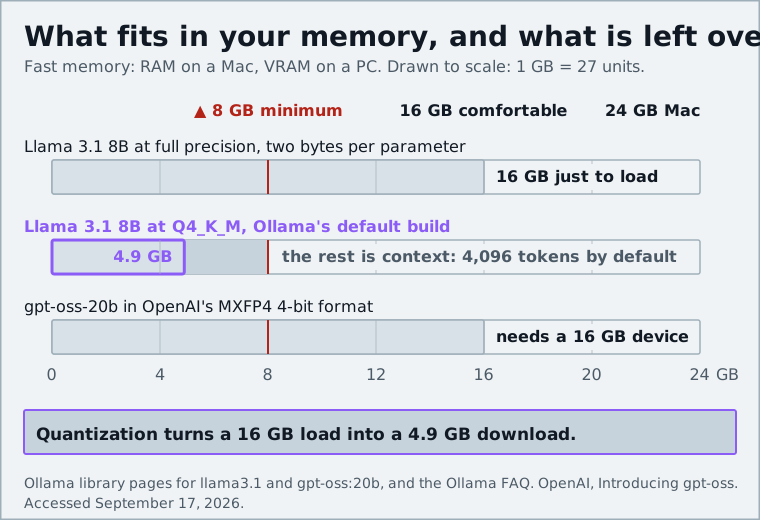
A model is a big table of numbers (parameters). "8B" means eight billion of them. Stored at full precision, each parameter takes two bytes, so an 8B model would need 16 GB just to load. Quantization rounds those numbers to fewer bits, typically four, which shrinks the file to roughly a quarter of the size at a small cost in quality. That is why you will see names like Q4_K_M: four-bit quantization, a particular rounding scheme, medium quality.
The rule of thumb: the whole quantized model must fit in fast memory. On a Mac that means system RAM; on a PC with a discrete GPU it means VRAM, and anything that spills over into system RAM runs much slower. Ollama's default Llama 3.1 8B build, for example, is a 4.9 GB download, and 7 to 9B models at Q4 fit on 6 to 8 GB cards with room for a modest context, where they typically run at a few dozen tokens per second. Ten tokens per second is roughly reading speed; anything above 20 feels instant.
Leave headroom. The context (your conversation plus any documents you paste) also lives in memory, so an 8 GB card that fits a 5 GB model comfortably will struggle if you push the context to 32,000 tokens.
Step 1: Choose Ollama (terminal) or LM Studio (app)
Both tools are free and both are wrappers around the same open-source inference engine, llama.cpp. They differ in how you interact with them.
Scroll sideways to see the full table →
| Ollama | LM Studio | |
|---|---|---|
| Interface | Command line (a basic desktop app exists too) | Full desktop app with chat window |
| Model discovery | ollama pull <name> from a curated library | Visual browser with one-click downloads from Hugging Face |
| Runs as a background service | Yes, automatically | When you toggle the server on |
| Local API | http://localhost:11434, native and OpenAI-compatible | http://localhost:1234/v1, OpenAI-compatible |
| Best for | Developers, scripting, always-on server | Beginners, experimenting with many models |
| Platforms | macOS, Windows, Linux | macOS, Windows, Linux |
Pick LM Studio if you want to click a button and start chatting, browse models with descriptions, and watch memory usage in a sidebar. Pick Ollama if you are comfortable in a terminal, want the model server to be running whenever your machine is on, or plan to script against it. Many people install both: LM Studio for trying models, Ollama for the one they keep.
Step 2: Install and run your first model
With Ollama
- Download the installer from ollama.com and run it. On macOS and Windows it installs a menu-bar app that starts the server; on Linux the install script sets up a system service.
- Open a terminal and run:
ollama run llama3.1
- Ollama downloads the default 8B model (about 5 GB) and drops you into a chat prompt. Type a question and press Enter. Type
/byeto leave.
The server keeps running in the background on port 11434 after you exit the chat, which is what makes Step 4 possible.
With LM Studio
- Download LM Studio from lmstudio.ai and install it.
- Open the Discover tab (the magnifying glass). Search for a model, for example "Llama 3.1 8B" or "gpt-oss-20b". LM Studio shows an estimate of whether each file will fit in your memory, with a warning if it will not.
- Click Download, wait, then open the Chat tab, pick the model from the dropdown at the top, and start typing.
That is the whole process. Everything after this is about doing it better.
Step 3: Pick the right model for your machine
The best model is the largest one that fits your memory with room to spare. Here is a starting list by hardware class; every one of these is available in both Ollama's library and LM Studio's browser.
Scroll sideways to see the full table →
| Your hardware | Try first | Also good | Notes |
|---|---|---|---|
| 8 GB RAM, no GPU | Llama 3.2 3B | Phi-4 Mini, Qwen 3 4B, Gemma 3 4B | Phi-4 Mini is the quickest of these on CPU-only machines; Mistral 7B works if you keep the context short |
| 8 GB VRAM GPU or 16 GB Mac | Llama 3.1 8B (Q4_K_M) | Qwen 3 8B, Gemma 3 12B (tight) | Qwen 3 8B beats Llama 3.1 8B on most benchmarks at the same size |
| 16 GB VRAM or 24-32 GB Mac | gpt-oss-20b | Qwen 3 14B, Gemma 3 27B (Q4) | gpt-oss-20b is the best reasoning model in this class |
| 24 GB VRAM or 48 GB+ Mac | Qwen 3 32B, Gemma 3 27B | Llama 3.3 70B (Q4, 64 GB Mac) | Approaching cloud quality for everyday tasks |
The model worth calling out is gpt-oss-20b, which OpenAI released on August 5, 2025 under the Apache 2.0 license alongside a larger 120B sibling. It has 21 billion parameters but only 3.6 billion are active for any given token (a mixture-of-experts design), so it runs faster than its size suggests. OpenAI says it performs similarly to o3-mini on common benchmarks and runs on devices with 16 GB of memory. Its weights ship in OpenAI's MXFP4 4-bit format, which the Ollama library page notes it supports natively, so there is no separate quantized version to hunt for:
ollama run gpt-oss:20b
If you have 16 GB of RAM on a Mac, it fits, but only just; close your browser first. On a 16 GB Windows laptop without a GPU it will load but run slowly.
For each model, Ollama's library page lists the available sizes and quantizations; ollama pull qwen3:8b gets the default Q4 build, and tags like qwen3:8b-q8_0 get higher-precision variants if you have the memory.
Step 4: Connect other apps through the local API
The chat window is only the start. Both tools expose an HTTP API that mimics OpenAI's, which means almost any app or library that can talk to ChatGPT can talk to your laptop instead by changing one URL.
Ollama's API
Ollama listens on http://localhost:11434. Its native API has endpoints such as /api/generate, /api/chat, /api/tags (list installed models) and /api/pull. It also serves an OpenAI-compatible API at http://localhost:11434/v1/, with /v1/chat/completions, /v1/completions, /v1/embeddings and /v1/models.
A quick test from the terminal:
curl http://localhost:11434/api/chat -d '{
  "model": "llama3.1",
  "messages": [{"role": "user", "content": "Say hello in three words."}],
  "stream": false
}'
And the same thing from Python using the official OpenAI client, pointed at Ollama:
from openai import OpenAI

client = OpenAI(base_url="http://localhost:11434/v1/", api_key="ollama")
reply = client.chat.completions.create(
    model="llama3.1",
    messages=[{"role": "user", "content": "Say hello in three words."}],
)
print(reply.choices[0].message.content)
The api_key is required by the client library but ignored by Ollama; any string works.
LM Studio's API
In LM Studio, open the Developer tab and toggle "Start server," or run lms server start from a terminal. The server listens on port 1234 by default and exposes the same OpenAI-compatible endpoints: /v1/models, /v1/chat/completions, /v1/completions and /v1/embeddings. Point any OpenAI client at http://localhost:1234/v1 and it works. LM Studio also has its own REST API and SDKs for Python and TypeScript if you want features beyond the OpenAI shape.
What to plug in
Once the server is up, the useful integrations are the ones you already use:
- Coding assistants. Editor extensions such as Continue and Cline support Ollama and any OpenAI-compatible endpoint as a backend.
- Chat front-ends. Open WebUI gives you a ChatGPT-like browser interface with document upload, backed by Ollama.
- Automation. Anything with an "OpenAI base URL" setting, from n8n to a shell script, can call your model for free.
- Agents. If you are curious about agent frameworks and tool calling, our explainer on AI agents and MCP covers the concepts; both Ollama and LM Studio support tool use with models trained for it, such as Llama 3.1, Qwen 3 and gpt-oss.
Step 5: Tune context length and speed
Two settings account for most of the difference between "fine" and "great."
Context length. Ollama defaults to a 4,096-token context, which is enough for chat but too small for pasting a long document. Raise it with an environment variable before starting the server (OLLAMA_CONTEXT_LENGTH=16384 ollama serve), per session inside a chat with /set parameter num_ctx 16384, or per request by passing "options": {"num_ctx": 16384} in the API call. In LM Studio, the context length slider is in the model load settings. Remember that context costs memory; double the context and you may need to step down a model size.
GPU offload. LM Studio shows how many of the model's layers are on the GPU; if it is not all of them, you are running partly on CPU. Try a smaller quantization or a smaller model. Ollama handles this automatically and reports the split in ollama ps.
Keep the model loaded. Ollama unloads a model after five minutes of inactivity by default, so the first message after a break is slow. Set OLLAMA_KEEP_ALIVE=1h (or -1 to keep it loaded indefinitely) if you have the memory to spare.
Serve on your network. By default Ollama binds to 127.0.0.1 only. Setting OLLAMA_HOST=0.0.0.0:11434 lets other devices on your LAN use it, which is handy for pointing a phone app at a desktop with a real GPU. There is no authentication, so only do this on a network you trust.
Troubleshooting
- "Model requires more system memory" or the app refuses to load. The model does not fit. Pick a smaller parameter count or a lower quantization (Q4 instead of Q8), and close memory-hungry apps.
- It runs, but at one or two tokens per second. The model is spilling out of GPU memory into system RAM, or you are on CPU with a model that is too large. Same fix: go smaller. On a Mac, check Activity Monitor for memory pressure.
- Answers are cut off mid-sentence. You have hit the context limit. Raise
num_ctxas in Step 5. - The API returns connection refused. The server is not running. For Ollama, start it from the menu-bar app or
ollama serve; for LM Studio, check the Developer tab toggle. Confirm withcurl http://localhost:11434/api/tagsorhttp://localhost:1234/v1/models. - A model that worked yesterday is now slow. It was unloaded. See keep-alive above.
- Windows: Ollama cannot see the GPU. Update the NVIDIA driver; Ollama relies on CUDA and old drivers are the usual culprit. AMD GPUs on Windows have narrower support; LM Studio's Vulkan backend is worth trying.
What local models still can't do
Be realistic about what an 8B or even 20B model gives you. Compared with a frontier cloud model, a local model on a laptop:
- Knows less. Its training cutoff is fixed and its factual recall is thinner, so it needs the facts in the prompt.
- Reasons worse on multi-step problems. gpt-oss-20b narrows this gap noticeably, but it does not close it.
- Cannot browse the web or see images unless you add tooling and a vision-capable model (Gemma 3 and Qwen 2.5 VL can look at pictures; Llama 3.1 cannot).
- Struggles with very long documents. Even with a large context, small models lose track of details past 20 or 30 pages.
The good news is that the tasks people actually do most, summarizing, rewriting, drafting, explaining code, brainstorming, are exactly the ones small models handle well. For anything that needs current knowledge or hard reasoning, keep a cloud model around and use the local one for everything else.
Sources and further reading
- Ollama API reference (Ollama on GitHub)github.com
- OpenAI compatibility (Ollama Docs)docs.ollama.com
- FAQ (Ollama Docs)docs.ollama.com
- LM Studio as a Local LLM API Server (LM Studio Docs)lmstudio.ai
- OpenAI Compatibility Endpoints (LM Studio Docs)lmstudio.ai
- Introducing gpt-oss (OpenAI)openai.com
- gpt-oss:20b (Ollama library)ollama.com
- OpenAI's new open weight (Apache 2) models are really good (Simon Willison)simonwillison.net
- llama3.1 (Ollama library)ollama.com