

If you have ever tapped "Add to Home Screen" on a website, or noticed a small install icon in Chrome's address bar, you have already met a progressive web app. A PWA is a website that behaves like an app: it gets its own icon, opens in its own window, can keep working offline and can send you notifications. This guide explains what is going on under the hood, what a PWA can and cannot do, how to install one on every major platform, and whether any of it should change how you use your devices.
What a PWA is, what it gets you, and where it falls short
- A progressive web app is a normal website with a few extra files that let a browser install it and keep it working without a network.
- Three pieces make it work: a secure HTTPS connection, a small "manifest" file that describes the app, and an optional background script called a service worker.
- Installed PWAs get a home screen or Start menu icon, a full-screen window, offline caching, push notifications and icon badges on most platforms.
- They still cannot match native apps for deep hardware access, and iPhone support lags behind Android and desktop.
- Installing one is free, takes seconds and is easy to undo.
The short answer: a website that behaves like an app
Mozilla's developer documentation defines a PWA as an app "built using web platform technologies, but that provides a user experience like that of a platform-specific app," which is the clearest one-sentence summary you will find (MDN). The site is still written in HTML, CSS and JavaScript, and it still lives on a web server. The difference is that a supporting browser can "install" it: give it an icon, strip away the tabs and address bar, and let it run more like something you downloaded from an app store.
The word "progressive" is doing real work in the name. A PWA is built on progressive enhancement: everyone gets a working website in any browser, and people whose browsers support the extra features get the app-like experience on top. Nothing breaks on an old browser; it simply shows a regular site.
That is also why you may have used PWAs without knowing it. The web versions of many mail clients, chat tools, note apps and streaming services are installable today.
The three building blocks: HTTPS, a manifest and a service worker
Under the hood, a PWA is three layers on top of an ordinary site. You never touch any of them as a user, but knowing what they do makes the behavior less mysterious.
1. A secure origin (HTTPS)
Browsers only offer to install sites served over HTTPS. Chrome lists "be served over HTTPS" as the first of its installability criteria. The reason is practical: an app that runs in the background and receives notifications should not be something an attacker on coffee shop Wi-Fi can tamper with in transit.
2. The web app manifest
The manifest is a small text file that tells the browser how to present the site as an app. MDN calls it the one strictly required piece: it must contain "enough information for the browser to install the PWA, such as the app name and icon." Chrome's checklist asks for a name, icons in 192- and 512-pixel sizes, a start URL and a display mode such as "standalone," meaning no browser chrome. The manifest can also set the window's theme color and register the app as a share target.
3. The service worker
A service worker is a JavaScript file the browser runs in the background, separate from any open tab. It sits between the app and the network, intercepting requests and answering them from a local cache. That is what makes offline use possible, and it is what wakes up to handle a push notification when the app is closed.
MDN notes that a service worker is technically optional for installation but is "often used with PWAs in order to provide at least a minimal offline experience." Without one, the "app" is just a site in a frameless window that goes blank when your connection drops.
What a PWA can do that a normal website can't
Once installed, a PWA picks up a list of abilities that a tab in a browser does not have. According to MDN's overview, an installed PWA can:
- Live on your device like an app. It gets an icon on the home screen, Dock, taskbar or Start menu and appears in Alt+Tab or the app switcher. On Windows, PWAs even show up in the Add or remove programs list (Microsoft Learn).
- Use the whole screen. No tabs, no address bar, just the app.
- Work offline and in the background. The service worker caches pages and data, so the app opens and shows content with no network, then syncs when you are back online.
- Send notifications. Through the Push and Notifications APIs, the server can wake the service worker to show a system notification, and the app can put a badge count on its icon.
- Plug into the operating system. A PWA can appear in the Share sheet, handle certain file types, and use the camera, location and motion sensors with your permission.
None of this requires an app store. The developer updates the website and every installed copy picks it up the next time it runs.
What a PWA still can't do compared with a native app
The honest limits are just as important as the feature list.
It still needs a browser engine. MDN puts it plainly: PWAs "are, as a matter of technology, still websites." Every installed PWA runs inside the browser you installed it from, and installing the same PWA from Chrome and from Edge creates two independent copies that do not share data.
Hardware access is shallower. Bluetooth, NFC, background location, advanced camera controls and system features like widgets or Siri Shortcuts are limited, gated behind permissions, or unavailable on the web. If an app needs to talk to a smartwatch or a fitness sensor, it is probably native for a reason.
Support is uneven across platforms. This is the big one for everyday users, and iPhone is where it bites most. Apple added Web Push for home screen web apps only in iOS 16.4, in March 2023, and the WebKit team's announcement makes clear that notifications work only after the site has been added to the Home Screen and only when permission is requested "in response to direct user interaction." A PWA running in a regular Safari tab cannot notify you at all.
Desktop Firefox does not install PWAs. MDN's installation guide lists Firefox on desktop as unsupported without a third-party extension, so if that is your browser, the install icon simply will not appear.
Discovery is harder. There is no single store to browse, although Microsoft lists many PWAs in the Microsoft Store. Mostly, you find a PWA by visiting the site.
How to install a PWA on Windows, macOS, Android and iPhone
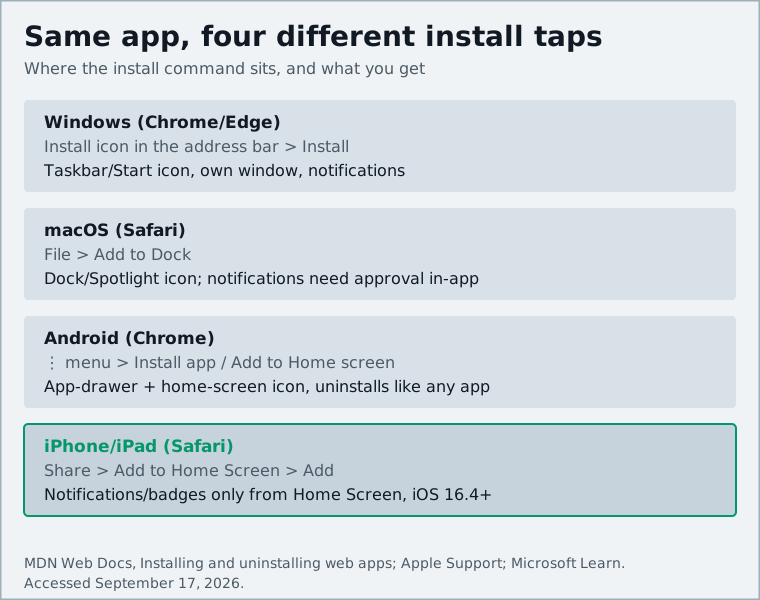
If the option described below is missing, the site either is not a PWA or your browser does not support installation.
Windows (Chrome or Edge)
- Open the site in Chrome or Edge.
- Look for an install icon at the right end of the address bar. Microsoft calls it "App available" in Edge (Microsoft Learn); in Chrome it looks like a small monitor with a down arrow.
- Click it, then click Install. You can tick "Pin to Start" or "Auto-start on device login" in Edge's post-install dialog.
- To manage or remove apps later, visit
edge://appsorchrome://apps, or use Windows Settings.
macOS (Safari, Chrome or Edge)
Safari gained web app support in macOS Sonoma 14. Apple's instructions are: open the site, choose File > Add to Dock, give it a name and click Add. The app shows up in the Dock and Spotlight. If you want unread badges on the icon, approve notifications inside the web app, not in Safari. Chrome and Edge on the Mac use the same address-bar install icon as on Windows.
Android (Chrome)
Open the site, tap the three-dot menu, and look for Install app or Add to Home screen. Some sites also show their own install banner. The icon appears in your app drawer and home screen and can be uninstalled like any other app.
iPhone and iPad (Safari)
- Open the site in Safari.
- Tap the Share button (the square with an arrow).
- Scroll down and tap Add to Home Screen, then Add.
- Open the app from its new icon, not from Safari. Notifications and icon badges only work from the home screen version, and only on iOS 16.4 or later.
Why companies build PWAs instead of (or alongside) native apps
From a company's point of view, the appeal is arithmetic. One codebase reaches Windows, macOS, Android, iOS, ChromeOS and Linux, versus separate Swift and Kotlin apps plus a website. Updates ship instantly with no store review, and a PWA is indexable by search engines and shareable with a link.
That is why, a decade after the term was coined, PWAs remain a common choice for organizations that want fast, accessible experiences without maintaining several platform-specific apps; MDN's overview sums up the appeal as running "on multiple operating systems and device classes from a single codebase" while still being distributed "in app stores, as well as openly via the web." The pattern many larger companies settle on is both: a native app for people who want the deepest integration, and a PWA so everyone else gets a fast, installable experience from the same web code.
There are also trade-offs that push companies the other way. App stores provide payments, subscriptions and discovery that PWAs lack. And the iOS gaps described above still steer some teams toward native for anything that depends on reliable background behavior or push engagement on iPhone.
Should you care as a user?
Yes, in a low-key way. Installing a PWA for a site you open every day gets you a cleaner window, a proper icon, faster startup and, on most platforms, notifications. It costs nothing, uses little storage, and uninstalls in one click. For web-first tools, the PWA is often the "desktop app" the company would otherwise wrap in a heavy Electron shell; our Notion vs Obsidian comparison looks at two products with very different attitudes to web versus local apps.
Be more careful with anything that must run reliably in the background: navigation, fitness tracking, messaging you cannot afford to miss. On Android and desktop a PWA can be fine; on iPhone, the native app is the safer bet.
And a PWA inherits whatever browser you installed it from. If that browser is discontinued or loses features, your installed apps go with it, which is worth remembering given how quickly browser projects come and go.
Sources and further reading
- What is a progressive web app? (MDN Web Docs)developer.mozilla.org
- Installing and uninstalling web apps (MDN Web Docs)developer.mozilla.org
- What does it take to be installable? (web.dev)web.dev
- Web Push for Web Apps on iOS and iPadOS (WebKit blog)webkit.org
- Use Safari web apps on Mac (Apple Support)support.apple.com
- Use Progressive Web Apps in Microsoft Edge (Microsoft Learn)learn.microsoft.com
- What is a PWA? The ultimate guide to progressive web apps (MobiLoud)mobiloud.com