

A smart plug that shows "offline" every few days is annoying in a way that is hard to explain to anyone who has not lived with it. The lamp does not turn on, the app spins, and you walk over to the switch like it is 2015. The good news is that in most homes the device is fine; the router is doing something modern that the plug's cheap 2.4 GHz radio does not understand. This guide walks through the eight fixes that solve most cases, ordered from most to least likely, with the settings named as they appear in the TP-Link, ASUS, Netgear and eero apps.
The fixes that solve most cases, most likely first
- Give smart devices their own 2.4 GHz network (fixes most cases on its own).
- Turn off band steering or "Smart Connect" on the network they use.
- Set that network to WPA2, not WPA3 or WPA2/WPA3 mixed.
- Disable Wi-Fi 7 mode and MLO on that network if you have a Wi-Fi 7 router.
- Pick a fixed 2.4 GHz channel (1, 6 or 11) at 20 MHz width.
- Turn off beamforming and fast roaming for simple devices.
- Reserve IP addresses and make sure the DHCP pool is big enough.
- Move the device, or the router, away from microwaves, mirrors and fish tanks.
If everything still drops after all eight, skip to the last section: it may really be the device.
First, find the pattern: one device, one room, or everything?
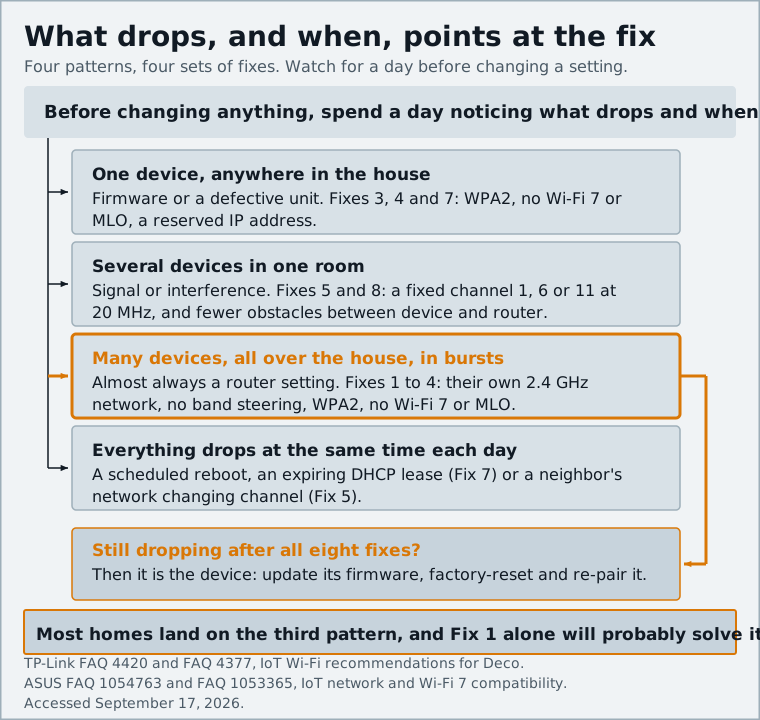
Before changing anything, spend a day noticing what drops and when:
- One device, anywhere in the house. Probably firmware or a defective unit. Fixes 3, 4 and 7, then the last section.
- Several devices in one room. Signal or interference. Fixes 5 and 8.
- Many devices, all over the house, in bursts. Almost always a router setting. Fixes 1 through 4.
- Everything drops at the same time each day. A scheduled reboot, an expiring DHCP lease (Fix 7) or a neighbor's network changing channel (Fix 5).
Most readers land in the third group, and Fix 1 alone will probably solve it.
Fix 1: Give smart devices their own 2.4 GHz network
Nearly every smart plug, bulb, sensor and budget camera is 2.4 GHz-only. Modern routers broadcast one network name across all bands and decide per device which to use, which is convenient for phones and a mess for a $12 plug.
TP-Link's support guidance is direct: "Most IoT devices only work on 2.4GHz, and their setup apps require your phone to be on the same band," so its first recommendation is a dedicated 2.4 GHz IoT network, found under More > IoT Network in the Deco app (TP-Link FAQ 4420). ASUS Wi-Fi 7 routers have an equivalent IoT Network profile, and Netgear's Orbi app offers one too.
Give the IoT network its own name, then re-pair each smart device to it. Tedious for 30 devices, but you do it once. If your router has no IoT-network feature, split the bands into two named networks (Home and Home-IoT) and put smart devices only on the 2.4 GHz one.
Fix 2: Turn off band steering (or "Smart Connect")
Band steering moves a device to a faster band when the signal is strong enough. For a 2.4 GHz-only device that is a trap: close to the router, the steering logic keeps trying to push it onto 5 GHz, which it cannot join, and the device bounces through failed handoffs instead of settling. The telltale symptom: a device that works from across the house and fails next to the router.
TP-Link's IoT recommendations say to disable band steering outright for smart devices (TP-Link FAQ 4377). If Fix 1 gave you a 2.4 GHz-only network, steering is already irrelevant there. Otherwise, look for Smart Connect (ASUS, TP-Link), Band Steering (Netgear) or, on eero, the per-device option to pause 5 GHz while pairing.
Fix 3: Use WPA2 for the IoT network, since many devices can't do WPA3
Most routers now default to a WPA2/WPA3 "transition" mode. Some smart-home chipsets handle it badly: they connect, then fail to re-authenticate and drop off hours later.
ASUS is explicit that its IoT network uses WPA2-Personal, unlike the main network's WPA2/WPA3, because older IoT devices often lack WPA3 support (ASUS FAQ 1054763). TP-Link's advice is to set 2.4 GHz security to "WPA2-PSK only" to prevent connection instability (TP-Link FAQ 4377).
Set your IoT network to WPA2-PSK with AES and keep WPA3 on the main network. The security cost is small on an isolated IoT network with no access to your computers, especially with client isolation turned on.
Fix 4: Disable Wi-Fi 7 features that confuse older devices (MLO, BE mode)
If your smart home started misbehaving the week you installed a Wi-Fi 7 router, this is your fix. Wi-Fi 7 (802.11be) adds Multi-Link Operation and GCMP-256 encryption, and old radios do not know what to do with either.
ASUS's compatibility guidance says plainly that "some legacy devices might not compatible with WiFi 7 nor GCMP-256 encryption," and lists three remedies: disable Wi-Fi 7, change the encryption to AES, or move the devices to an IoT network with "WPA2-personal AES encryption" (ASUS FAQ 1053365). Its IoT troubleshooting page walks through Network > [network profile] > WiFi 7 mode to disable Wi-Fi 7 and Wireless > MLO > Enable MLO to switch off Multi-Link Operation (ASUS FAQ 1054763).
TP-Link says the same in different words: set the 2.4 GHz mode to "802.11 b/g/n/ax mixed (without BE)" (TP-Link FAQ 4377). Your plugs gain nothing from Wi-Fi 7, so turning it off on 2.4 GHz costs nothing you would notice. If you are shopping for a new mesh system, being able to do this per network is one of the criteria in our Wi-Fi 7 mesh comparison for smart homes.
Fix 5: Pick a fixed channel (1, 6 or 11) and a 20 MHz width
The 2.4 GHz band is crowded, and "auto" channel selection means your router may jump channels at 3 a.m., dropping every device for a few seconds while they find it again. Some cheap devices do not find it again.
TP-Link's recommendation is to "choose a less congested 2.4GHz Wi-Fi channel with a lower channel width," after checking congestion with a Wi-Fi analyzer app (TP-Link FAQ 4377). Practically:
- Use channel 1, 6 or 11, the only three 2.4 GHz channels that do not overlap in North America; anything in between interferes with two neighbors at once.
- Set the width to 20 MHz. A 40 MHz channel doubles throughput you do not need and interference you do not want.
- Pick the channel with the fewest strong networks and leave it fixed.
Fix 6: Switch off beamforming and fast roaming for the IoT network
Beamforming focuses the signal toward a client that supports it; fast roaming (802.11r/k/v) hands a client between mesh nodes without a full reconnection. Both are built for phones and laptops. TP-Link notes that "many simpler smart home devices" do not support them, and the results are devices that "Refuse to connect," "Stick to a weak, distant signal," or "Drop the connection entirely" (TP-Link FAQ 4420).
TP-Link's rule of thumb: disable Fast Roaming if devices cannot connect at all, and disable Beamforming if they connect but drop or time out frequently. Both live under More > Advanced in the Deco app; on ASUS look under Wireless > Professional, on Netgear under Advanced > Wireless Settings. On Wi-Fi 7 and recent Wi-Fi 6E Decos there is one more toggle, High Capacity Mode, which TP-Link says to enable "only if you have more than 20 smart home devices or if your smart home devices are dropping connection."
Fix 7: Reserve IP addresses and give the router enough DHCP leases
Every device needs an IP address, handed out by the router's DHCP server from a pool, and many consumer routers ship with a pool of around 100. Add 40 smart devices plus phones, laptops, TVs and guests, and the pool can run dry; the next device to ask gets no address and shows as offline.
Two settings fix it:
- Enlarge the DHCP range. In the router's LAN settings, extend the pool to cover, say, 192.168.1.20 through 192.168.1.250, without overlapping any static addresses you set by hand.
- Reserve addresses for hubs. Use DHCP reservation (ASUS calls it Manually Assigned IP, Netgear calls it Address Reservation, eero calls it Reserve IP) for critical devices such as smart-home hubs, bridges and cameras, so they keep a permanent address. A reserved address also stops a hub changing address after a power cut, which can break automations that reference it.
While you are there, ASUS notes that restarting both the device and the router clears "IP address conflicts, WiFi reconnects, DNS cache problems, and network congestion" (ASUS), so reboot the router after changing settings.
Fix 8: Check placement and interference: microwaves, mirrors, fish tanks
2.4 GHz travels farther than 5 GHz, but it has enemies of its own. Microwave ovens leak in the 2.4 GHz range while running, so a plug behind the microwave drops every time you heat up lunch. Mirrors and foil-backed insulation reflect the signal. Water absorbs it, so an aquarium or water heater between router and device acts as a wall.
ASUS's first physical check is simply to reduce distance and obstacles between the IoT device and the router. Keep the router off the floor and out of cabinets, and if one room is consistently weak, give that room a mesh node rather than a stronger router in the hallway.
When it really is the device: firmware, hubs and Matter-over-Thread alternatives
If you have done all eight and one device still drops, stop blaming the router. Three things remain:
Firmware. Cheap devices ship with bugs that are fixed later, if the maker bothers. Check the device's app for an update, then factory-reset it and re-pair it on the IoT network.
Too many Wi-Fi devices. Even a good router has a practical limit on how many chatty 2.4 GHz clients it can juggle. Past 40 or 50, a second access point or mesh node helps more than any setting.
Getting off Wi-Fi entirely. Thread is a low-power mesh radio built for small battery devices, Matter runs over it, and Thread border routers are now built into mainstream hardware: the eero Max 7 ships with Thread, Matter and Zigbee radios (eero), and Apple's HomePod mini and Apple TV 4K act as Thread-enabled home hubs (Apple Support). Sensors on Thread never compete for 2.4 GHz airtime or ask the router for a DHCP lease. For how the pieces fit together, see What is Matter?.
Smart devices drop offline because routers have become smarter than the radios inside a $12 plug. Give those devices a plain 2.4 GHz network with WPA2, no band steering, no Wi-Fi 7 features and a fixed channel, and most "offline" alerts disappear. If a device still misbehaves, update it, reserve its address, and for anything new, buy Thread or Zigbee instead of Wi-Fi.
Sources and further reading
- Deco Smart Home Dropping? 3 Settings to Fix It (TP-Link)tp-link.com
- Recommendations for Wi-Fi setup for IoT smart home devices (TP-Link)tp-link.com
- IoT devices can't connect to WiFi 7 (BE) router's WiFi signal? (ASUS)asus.com
- How to ensure WiFi 7 router compatibility with connected devices (ASUS)asus.com
- eero Max 7 product page (eero)eero.com
- Pair and manage your Matter accessories (Apple Support)support.apple.com