

Windows 10 reaches the end of its support life on October 14, 2025. Your PC keeps working after that, but Microsoft stops fixing security holes in it. This guide walks you through the free upgrade to Windows 11 in five steps: back up, check whether your PC qualifies, switch on TPM 2.0 if that is what is blocking you, run the upgrade, and tidy up afterwards. If your PC is ineligible, the last two sections cover Microsoft's free Extended Security Updates and why we do not recommend the unofficial workarounds.
Update (June 2026): Microsoft has extended the consumer Extended Security Updates program by a year, to October 12, 2027. Details are in the ESU section below; the upgrade steps are unchanged.
What happens to Windows 10 after October 14, 2025
Microsoft's end-of-support notice is blunt: after October 14, 2025, Windows 10 receives no technical support, no software updates and no security fixes. Your files and apps stay; what disappears is the monthly patch that closes newly discovered vulnerabilities, which makes an unsupported OS steadily riskier the longer you run it. Microsoft's options are to upgrade the PC you have if it is eligible, buy a new one, or enroll in Extended Security Updates for more time.
Before you start
You will need:
- A PC on Windows 10, version 22H2 with the latest updates (check Settings > System > About).
- About an hour, mostly unattended, with the PC plugged in.
- A Microsoft account, needed for Windows 11 Home setup and for the ESU fallback.
- Roughly 20 GB of free disk space. Microsoft's download page lists 9 GB as the minimum for the Installation Assistant, but the upgrade also keeps a copy of Windows 10 for rollback.
- Nothing to pay. The upgrade is free for eligible devices and keeps your edition (Home to Home, Pro to Pro), per Microsoft's Get Windows 11 page.
The official minimum requirements are a 1 GHz 64-bit processor with two or more cores on Microsoft's supported CPU list, 4 GB of RAM, 64 GB of storage, UEFI with Secure Boot, TPM 2.0 and a DirectX 12 GPU. The two that trip up otherwise capable older PCs are the CPU list and TPM 2.0.
Step 1: Back up first
The upgrade is designed to keep everything in place, and it almost always does. Back up anyway, because "almost always" is not a plan.
- Files. Copy Documents, Desktop, Pictures and project folders to an external drive, or confirm your cloud service has finished syncing them.
- Windows Backup. Open Settings > Update & Security > Backup and turn on File History to an external drive, or sign in with a Microsoft account and use the Windows Backup app to sync settings and folders. That sync is also a free route into ESU later.
- Licenses and passwords. Note any license keys stored only on this PC, and make sure browser passwords are synced or exported.
Step 2: Check compatibility with PC Health Check
Microsoft's PC Health Check app is the official eligibility test, and it tells you exactly which requirement you fail if you fail one.
- Search the Start menu for PC Health Check. Many Windows 10 PCs already have it. If not, download it from Microsoft's PC Health Check page via
aka.ms/GetPCHealthCheckApp. - Open the app and click Check now under "Introducing Windows 11."
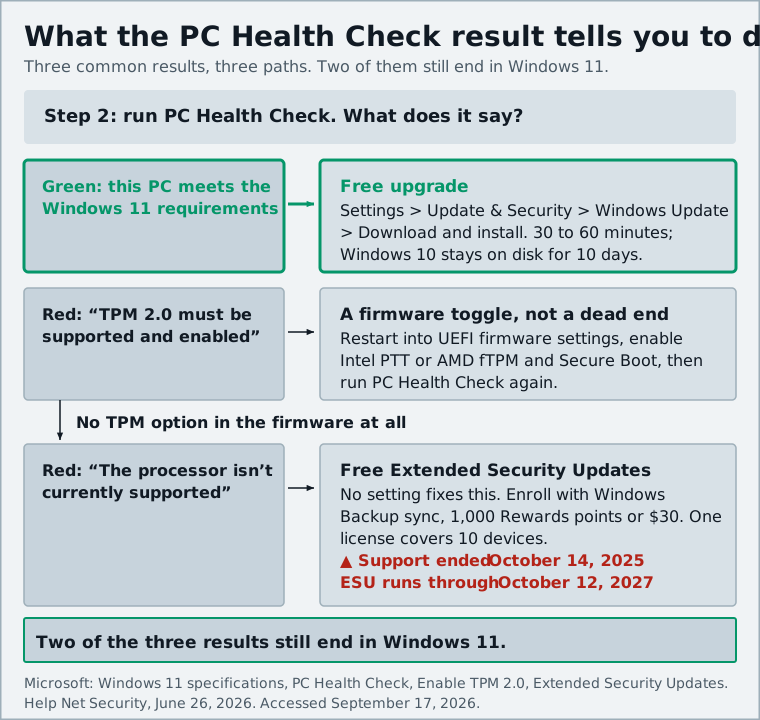
- Read the result. Green means skip to Step 4. Red names the specific problem, and there are three common ones:
- "TPM 2.0 must be supported and enabled." Very often the chip exists but is switched off in firmware. Go to Step 3.
- "Secure Boot" not supported or enabled. Also a firmware toggle; Step 3 covers it.
- "The processor isn't currently supported." No setting fixes this. Your CPU is not on Microsoft's list, and the honest answer is the ESU section below.
Windows Update (Settings > Update & Security) will also offer the upgrade if the PC qualifies, but PC Health Check is more useful because it tells you why when it does not.
Step 3: Enable TPM 2.0 and Secure Boot in UEFI
TPM 2.0 is a small security chip (or a firmware equivalent inside the CPU) that stores encryption keys, and Microsoft has called it non-negotiable for Windows 11. Most PCs sold since around 2016 have one, but many shipped with it disabled. Skip this step if PC Health Check was green.
First, confirm what you have. Press Windows key + R, type tpm.msc and press Enter. If it shows "The TPM is ready for use" with Specification Version 2.0, TPM is already on and something else is the problem. If it cannot find a TPM, it is either absent or disabled in firmware. Microsoft's TPM 2.0 guide also shows the status under Windows Security > Device security > Security processor details.
Then open the UEFI firmware settings:
- Go to Settings > Update & Security > Recovery and click Restart now under Advanced startup.
- After the restart, choose Troubleshoot > Advanced options > UEFI Firmware Settings > Restart.
- Look under Advanced, Security or Trusted Computing. The TPM option is named differently by manufacturer: "Security Device Support," "TPM State," "AMD fTPM" or "AMD PSP fTPM" on AMD systems, "Intel PTT" or "Intel Platform Trust Technology" on Intel systems. Set it to Enabled.
- Find Secure Boot (usually under Boot or Security) and enable it too. If it is grayed out, your PC may be booting in Legacy/CSM mode; check with
msinfo32(BIOS Mode should say UEFI). Converting a Legacy install needs thembr2gpttool and is a separate job. - Save and exit.
Run PC Health Check again. If the TPM option does not exist anywhere in your firmware, the PC does not have one and cannot be made eligible.
Step 4: Run the free upgrade via Windows Update or the Installation Assistant
Two supported routes give the same result. Use whichever appears first.
Route A: Windows Update (easiest). Open Settings > Update & Security > Windows Update and click Check for updates. If your PC is eligible you will see "Upgrade to Windows 11 is ready" with a Download and install button. Click it and let it run; the PC restarts several times and the whole thing typically takes 30 to 60 minutes.
Route B: Installation Assistant. If Windows Update has not offered the upgrade yet, download the Windows 11 Installation Assistant from Microsoft's Download Windows 11 page. Run it, accept the license terms, and choose to keep personal files and apps.
One caution: if PC Health Check says you are eligible but Windows Update is not offering the upgrade, Microsoft may have placed a safeguard hold for a known driver or app problem on your model; its guidance is that it will "temporarily delay your upgrade until the issue is resolved." Waiting a few weeks is wiser than forcing it. The Media Creation Tool and ISO on the same page are for clean installs; you do not need them here.
Step 5: After the upgrade: settings, drivers and the rollback window
Once you land on the Windows 11 desktop:
- Run Windows Update again. The first pass after an upgrade usually pulls in drivers and the latest cumulative update.
- Check Device Manager for yellow warning icons; graphics, audio and Wi-Fi are the usual suspects.
- Review defaults. Check Settings > Privacy & security, and set your browser under Settings > Apps > Default apps.
- Know your rollback window. Windows keeps the old installation for 10 days. During that time, Settings > System > Recovery > Go back returns you to Windows 10 with your files intact. After 10 days the files are deleted and going back means a clean reinstall, so test everything important within the window.
- Reclaim space later. After 10 days, Settings > System > Storage will offer to remove "Previous Windows installation(s)," typically 10 to 20 GB. Our guide to freeing up disk space on Windows 11 covers the rest.
If your PC isn't eligible: enroll in free Extended Security Updates
If your processor is unsupported or there is no TPM, Microsoft's consumer Extended Security Updates (ESU) program keeps Windows 10 receiving critical and important security patches. It is not full support (no features, no technical help), but it closes the security gap. Microsoft's ESU page lists three ways to enroll:
Scroll sideways to see the full table →
| Enrollment option | Cost |
|---|---|
| Sync your PC settings with Windows Backup to a Microsoft account | Free |
| Redeem 1,000 Microsoft Rewards points | Free (points) |
| One-time purchase | $30 USD or local equivalent, plus tax |
Requirements: Windows 10 version 22H2 (Home, Pro, Pro Education or Workstations) with the latest updates, and a Microsoft account with administrator rights (local accounts must switch; child accounts are not eligible). One license covers up to 10 devices. Enrollment appears as a link under Settings > Update & Security > Windows Update on eligible PCs; if you do not see it, install pending updates and check again, since Microsoft rolled the wizard out gradually.
Coverage dates. As of early October 2025, consumer ESU covers Windows 10 from October 15, 2025 to October 13, 2026: one year of security patches after the cutoff, with enrollment open until then. Treat it as a bridge, not a destination.
Update (June 2026): On June 26, 2026, Help Net Security reported that Microsoft had extended consumer ESU by a year through documentation updates rather than a press release, and Microsoft's ESU page now states coverage "through October 12, 2027." That is two full years of security patches after the original cutoff, with the same three enrollment options.
Unsupported-hardware workarounds and why we don't recommend them
Plenty of guides, including a thorough one at Tom's Hardware, explain how to bypass the TPM, Secure Boot, RAM and CPU checks, most often with Rufus, which builds a Windows 11 install USB with the checks removed. The methods work in the sense that Windows 11 installs. Here is what Microsoft says about the result, on its page on ineligible hardware:
- Installing on hardware that does not meet the requirements "isn't recommended."
- Such devices "won't receive support from Microsoft" and "aren't guaranteed to receive updates, including but not limited to security updates."
- "Damages to your PC due to lack of compatibility aren't covered under the manufacturer warranty."
- A watermark is added to the desktop, and Settings may show a notice.
The practical problem is the second point. The whole reason to leave Windows 10 is to keep getting security updates, and a bypassed install is not guaranteed to receive them; each annual feature update may re-run the checks and fail. You can end up worse off than an ESU-enrolled Windows 10 PC, which gets guaranteed patches for free for at least another year. There is also a hard floor: Windows 11 24H2 and later need CPU instructions (such as POPCNT and SSE4.2) that very old processors lack, and on those machines the OS will not boot at all. If the PC is a spare and you enjoy tinkering, go ahead with eyes open. For a machine you rely on, choose ESU or a new PC.
Troubleshooting
- The upgrade fails and rolls back. Free up disk space (aim for 25 GB), unplug non-essential USB devices, temporarily uninstall third-party antivirus, and try again.
- TPM shows as 1.2, not 2.0. Some 2014 to 2017 PCs can switch firmware TPM from 1.2 to 2.0 in UEFI or with a manufacturer utility. Check the support site for your model.
- No sound or Wi-Fi afterwards. Install the manufacturer's Windows 11 drivers; Windows Update often finds them within a day.
- Regret it. Settings > System > Recovery > Go back, within 10 days.
Sources and further reading
- Windows 10 support has ended on October 14, 2025 (Microsoft Support)support.microsoft.com
- How to get Windows 11 for your compatible PC (Microsoft)microsoft.com
- Windows 11 specifications and system requirements (Microsoft)microsoft.com
- How to use the PC Health Check app (Microsoft Support)support.microsoft.com
- Enable TPM 2.0 on your PC (Microsoft Support)support.microsoft.com
- Download Windows 11 (Microsoft)microsoft.com
- Windows 10 Consumer Extended Security Updates (Microsoft)microsoft.com
- Microsoft gives Windows 10 users an unexpected extra year of free security updates (Help Net Security)helpnetsecurity.com
- Installing Windows 11 on devices that don't meet minimum system requirements (Microsoft Support)support.microsoft.com
- How to Bypass Windows 11's TPM, CPU and RAM Requirements (Tom's Hardware)tomshardware.com